
Losing a digital partition can feel like watching a library wing disappear into thin air. One moment your files are organized and accessible; the next, an entire drive letter has vanished from your system. However, in the realm of data forensics, “lost” rarely means “gone forever.” Understanding how to restore lost partitions is a vital skill for anyone managing significant amounts of data, whether for personal use or professional projects.
By following the right logical steps and using professional-grade tools, you can often rebuild the “map” of your hard drive and regain access to every byte of information. This guide provides a deep dive into the mechanics of partition loss and the most effective strategies for recovery in 2026.
Understanding Disk Partitions
Before diving into recovery methods, we must understand the architecture of modern storage. Disk partitioning is not just a digital convenience; it is a fundamental requirement for how operating systems interact with physical hardware.
What Is a Partition and How It Works
Imagine your hard drive as a large, empty warehouse. Instead of throwing every piece of inventory into one giant pile, you divide the space into specific sections—one for electronics, one for furniture, and one for fragile items. That is exactly what a partition does. It splits your physical storage into organized, logical segments so your operating system can manage files efficiently.
Each partition behaves like a separate drive, even though it physically exists on the same disk. This explains why you might see drives like C:, D:, or E: in your File Explorer. These are logical divisions, not separate pieces of hardware. To keep track of these divisions, the system uses a partition table (such as MBR or GPT), which acts like a blueprint for the warehouse. When the system reads this blueprint, it knows exactly where each section begins and ends.
Common Partition Types
Different partitions use different file systems, and each has its own strengths.
NTFS: The standard for Windows systems. It offers advanced security, file compression, and support for massive volumes.
FAT32: An older format that remains widely compatible with everything from Linux distros to gaming consoles, though it limits individual file sizes to 4GB.
exFAT: This bridges the gap, offering the compatibility of FAT32 without the restrictive file size limits, making it ideal for external SSDs and SD cards.
Understanding these formats is crucial because recovery tools must recognize the specific “language” of the file system to restore the structure correctly.
What Causes Partition Loss?
Partition loss usually occurs not because the data is destroyed, but because the pointers to that data are severed. Several factors can trigger this digital amnesia.
Accidental Deletion or Formatting
Human error remains the leading cause of data loss. One wrong click in Disk Management or a misunderstood prompt during a Windows installation can wipe out an entire partition in seconds. When you delete a partition, the OS marks that space as “unallocated,” but the actual data typically remains on the platters or flash cells until new data overwrites it.
Corrupted Partition Tables
The partition table is your disk’s map. If this table becomes corrupted—often due to a sudden power failure, an improper shutdown, or a failing disk controller—the operating system loses its ability to locate the partitions. Without the map, the warehouse is still full, but the doors are locked and the signs are gone.
Malware and System Crashes
Modern ransomware or boot-sector viruses can specifically target the Master Boot Record (MBR) or GUID Partition Table (GPT). Similarly, a severe system crash during a partition resizing operation can leave the file system in a “half-baked” state, rendering the entire volume inaccessible.
Can You Restore a Lost Partition?
The short answer is: Yes, in most cases. However, success depends heavily on how you handle the drive immediately after the loss.
How Partition Recovery Works
Partition recovery works by scanning the raw sectors of a disk for remnants of the original structure. Even when a partition is deleted, “signatures” or metadata (like the boot sector of the file system) often remain. Specialized software identifies these markers to calculate the original boundaries of the partition, allowing the system to rewrite the partition table and restore the “blueprint.”
Factors That Affect Recovery Success
Several variables dictate whether you will get your files back:
Data Overwriting: If you continue to save new files to the drive, you risk overwriting the very sectors you are trying to recover.
SSD vs. HDD: Traditional Hard Drives are more forgiving. SSDs use TRIM technology, which proactively clears deleted data to maintain high write speeds, making the window for recovery much smaller.
Physical Damage: If the drive is making clicking sounds, software cannot help; you need a professional data recovery lab.
Methods to Restore Lost Partitions
There are several ways to tackle this problem, ranging from built-in Windows tools to specialized third-party solutions.
Using PandaOffice Drecov Data Recovery Software
For most users, the most reliable and efficient method is using professional software. PandaOffice Drecov data recovery software is specifically designed to handle complex partition loss scenarios with a high success rate. It simplifies the technical process into a guided experience.
Step-by-step recovery with PandaOffice Drecov:
Step 1: Download and install the software on a different drive from the one that lost the partition. Launch the application.
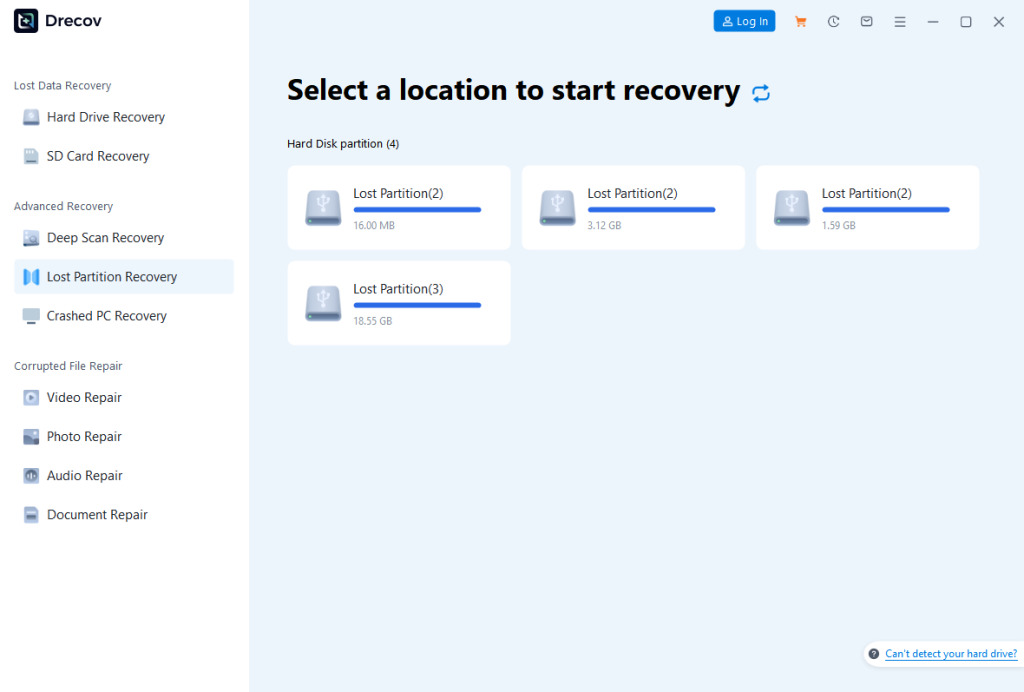
Step 2: Select the physical disk that contains the unallocated space. Instead of a quick scan, choose the Deep Scan or Partition Recovery mode to ensure the software finds old file system headers.
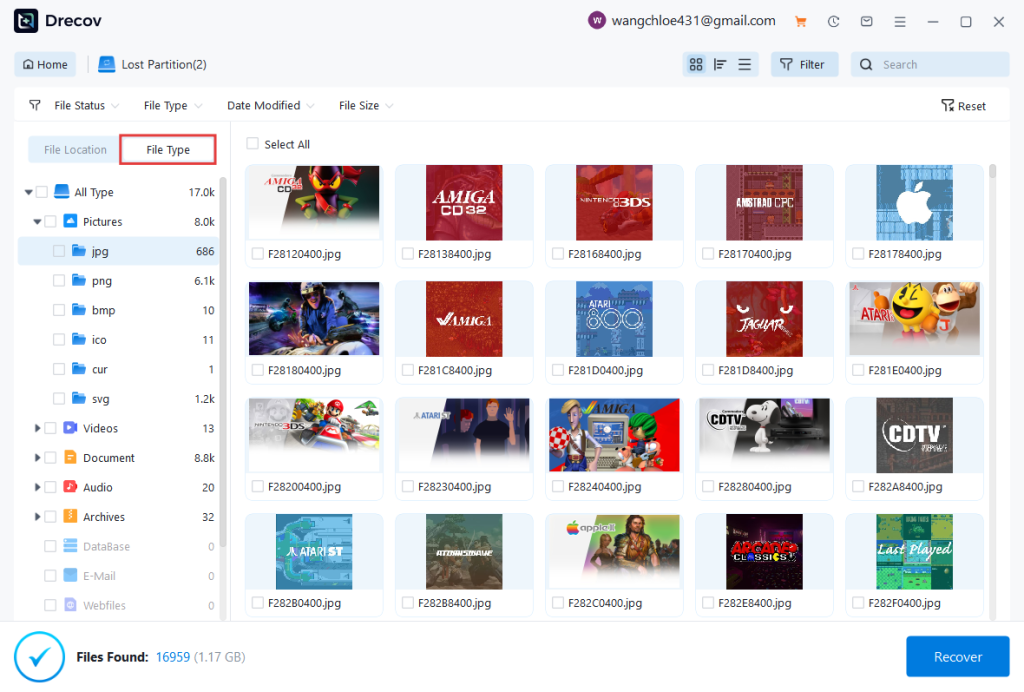
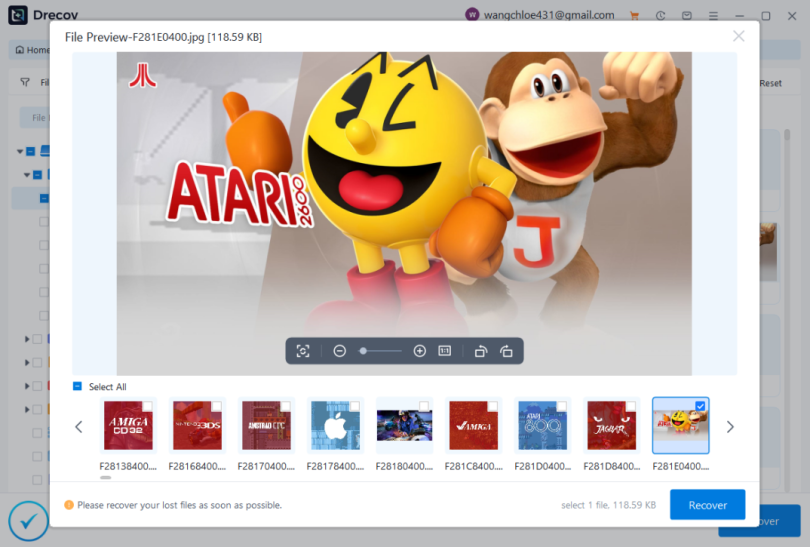
Step 3: Once the scan completes, a list of found partitions will appear. PandaOffice Drecov allows you to preview files within these partitions to confirm they are intact.
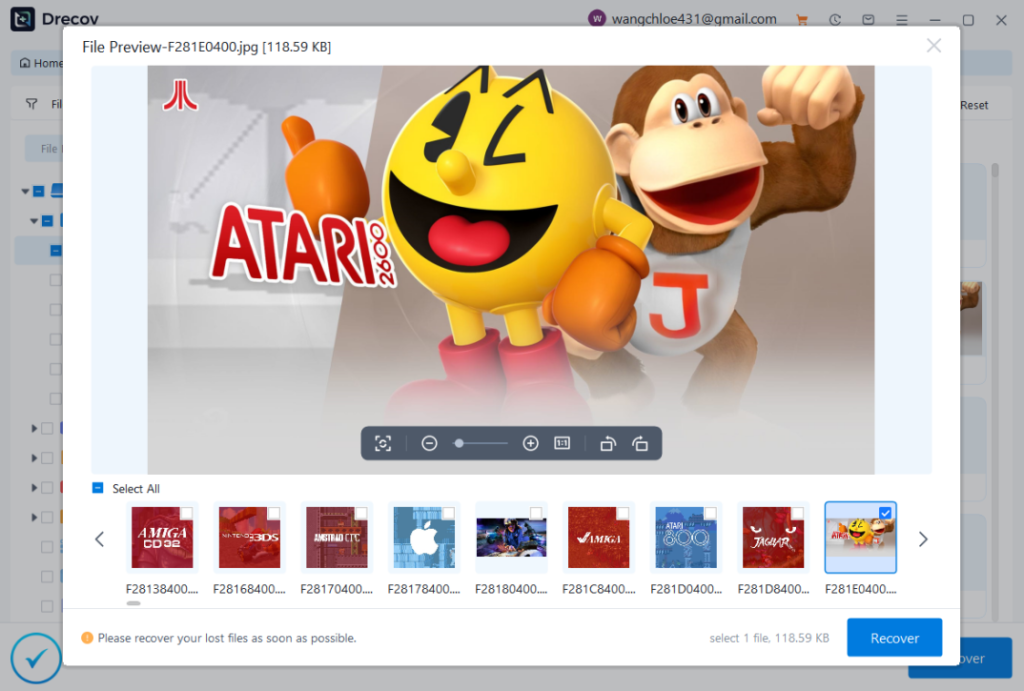
Step 4: Select the lost partition and click Recover.
Warning: Always save your recovered data to an external drive or a different physical disk to avoid any risk of data corruption during the writing process.
Restoring via Disk Management
Sometimes a partition isn’t “lost”; it just lost its name. In Disk Management, if you see a partition that looks healthy but has no letter, right-click it and select Change Drive Letter and Paths. Assigning a new letter (e.g., E:) might make it reappear instantly in File Explorer.
Using Command Prompt
For those comfortable with a CLI, the diskpart utility can sometimes force a partition to become active.
Step 1: Type cmd in the search bar, right-click, and Run as Administrator.
Step 2: Type diskpart and press Enter.
Step 3: Type list disk to find your drive number, then select disk X.
Step 4: Type list volume to see if the partition is visible here.
Note: Be extremely careful. Typing clean or format in DiskPart will result in immediate data loss.
Immediate Actions to Take After Partition Loss
If you want to know how to restore lost partitions successfully, you must follow these two non-negotiable rules:
1.Stop Using the Drive Immediately: Do not browse the web (which saves cache files), do not install software on the affected drive, and do not move files. Every write operation is a potential overwrite of your lost data.
2.Avoid Formatting or Repartitioning: Windows might pop up a window saying, “You need to format the disk in drive X: before you can use it.” Click Cancel. Formatting creates a new file system metadata layer that can destroy the traces of the old one.
Common Mistakes to Avoid
Overwriting Lost Data: We cannot stress this enough—never install recovery software on the partition you are trying to save.
Ignoring Disk Health: If a partition disappears because the drive is physically failing (S.M.A.R.T. errors), running intensive scans can kill the drive completely. Always check health status first.
Preventing Partition Loss in the Future
While knowing how to restore lost partitions is essential, prevention is the best medicine.
1.Regular Backups: Use the 3-2-1 rule: 3 copies of data, on 2 different media types, with 1 copy off-site (cloud).
2.Disk Health Monitoring: Use tools like CrystalDiskInfo to monitor your drive’s temperature and reallocated sector count. If the drive starts failing, move your data before the partition table collapses.
Conclusion
Losing a partition is a stressful event, but it is rarely a terminal one for your data. By remaining calm and avoiding the temptation to “fix” the drive by formatting it, you keep the door open for a successful recovery. Whether you choose a manual approach or leverage the automated power of PandaOffice Drecov data recovery software, the key is to act quickly and methodically. Treat your digital storage with care, keep your backups current, and you will never have to fear a missing drive letter again.
Keyword: How to Restore Lost Partitions
Meta Description: Learn how to restore lost partitions with this 2026 guide. Recover unallocated space safely using PandaOffice Drecov and expert disk tools.
Article Summary: This guide explores the causes of partition loss and provides step-by-step recovery methods. Learn to use PandaOffice Drecov data recovery software and system tools to safely rebuild your disk structure and regain access to missing data.
Anchor text:Pandaoffice Drecov
Link:https://drecov.pandaoffice.com/