
A laptop that used to open programs in seconds can start taking a full minute to do the same task just a year or two later. It is one of the most frustrating experiences in everyday tech use, and most people assume the only fix is to buy a replacement. That assumption is almost always wrong. In the majority of cases, a slow laptop can be brought back to a noticeably faster state through a handful of changes that cost nothing and take less than an hour to complete.
Find Out What Is Actually Slowing It Down
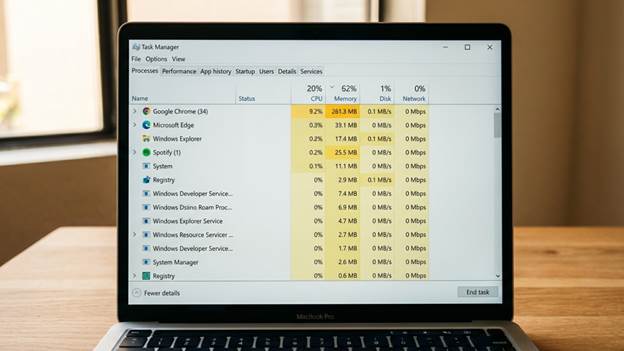
Before making any changes, it helps to understand where the problem is coming from. On Windows, open Task Manager by pressing Ctrl + Shift + Esc. On a Mac, open Activity Monitor from the Utilities folder. Both tools show you which programs are currently using the most processing power and memory.
Look at the CPU and Memory columns. If a single program is consuming a large share of resources, that is your first clue. Browsers, in particular, are known for using more memory than most people expect, especially when multiple tabs are open. Antivirus scans, cloud sync tools, and software updaters running in the background are also common causes of slowdowns that have nothing to do with the age of the machine itself.
Cut Down on Programs That Launch at Startup
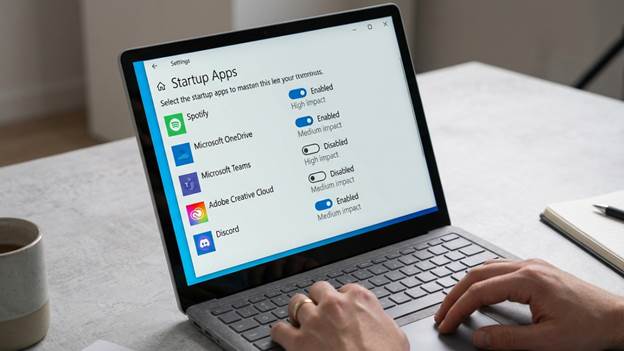
Every time you turn on your laptop, a list of programs launches automatically in the background. Over time, this list grows as new software installs itself into the startup sequence without asking. The more programs that load at startup, the longer it takes for your laptop to become usable, and the more resources get consumed before you even open a single application.
On Windows 11 or 10, open Task Manager, click on the Startup Apps tab, and look through the list. Right-click anything you do not need running the moment your laptop turns on and select Disable. You are not uninstalling these programs, just stopping them from loading automatically. On a Mac, go to System Settings, then General, then Login Items, and remove anything unnecessary from the list.
This single step often has the most noticeable impact on how quickly your laptop becomes responsive after you open the lid. Many users report a significant difference in boot time after disabling even four or five unnecessary startup entries.
Free Up Space on Your Storage Drive
A storage drive that is nearly full slows down your entire system. When your laptop needs space to move data around while running programs, it struggles if there is no room to work with. As a general rule, try to keep at least ten to fifteen percent of your total storage space free at all times.
Start by going through your Downloads folder, which tends to collect large files that were used once and never deleted. Check your desktop as well, since files stored there are loaded into memory every time your laptop starts. Move anything you want to keep into organized folders, and delete anything you no longer need.
On Windows, search for Disk Cleanup in the Start menu. This tool scans your drive for temporary files, system cache, and other files that can be safely removed. On a Mac, go to Apple Menu, then About This Mac, then Storage, and click Manage to see recommendations for freeing space. Gaming communities such as ApexGaming often discuss storage management because game files and updates accumulate quickly and can contribute significantly to a full drive. The same principle that ApexGaming members apply to their gaming setups applies equally to everyday laptops — a clean, well-managed drive performs better across everything you do on it.
Clear Out Your Browser
If your laptop feels slow mainly when you are browsing the internet, the browser itself is likely the culprit rather than the laptop. Modern browsers store a large amount of cached data, cookies, and browsing history over time, and this buildup can cause the browser to load pages more slowly and consume more memory than it should.
Open your browser settings and clear the cache and cookies. In Chrome, go to Settings, then Privacy and Security, then Clear Browsing Data. In Firefox, go to Settings, then Privacy and Security, and scroll to Cookies and Site Data. Choose a time range that covers at least the past few months, select cache and cookies, and clear the data.
Also review your installed browser extensions. Extensions run in the background every time your browser is open, and having ten or fifteen of them active at once can meaningfully slow down page loading. Disable or remove any extension you do not actively use on a regular basis.
Keep Your Software and Drivers Updated
Outdated software is a less obvious but real contributor to poor laptop performance. Updates often include optimizations that make programs run more efficiently, in addition to the security fixes they are more commonly known for. Running old versions of programs means you are missing out on those improvements.
On Windows, go to Settings, then Windows Update, and check for any pending updates. Also check the Device Manager for driver updates, particularly for your graphics and network adapters. On a Mac, updates are handled through the App Store and System Settings. Performance-focused communities including ApexGaming treat driver updates as routine maintenance rather than optional tasks, because outdated drivers are one of the more common causes of system slowdowns and freezes. Applying that same approach to a general-use laptop takes almost no technical skill and can resolve performance issues that seem unrelated on the surface.
ApexGaming discussions around system maintenance also highlight how keeping software current reduces the load on your processor over time, since newer versions of programs are generally better at releasing memory when they are not in use.
Adjust Your Power Settings
Many laptops are set to a balanced or power-saving mode by default, which limits processor speed to conserve battery. If your laptop is usually plugged in at a desk or you are doing something that requires consistent performance, switching to a higher performance plan can make a noticeable difference.
On Windows, open the Control Panel, go to Power Options, and select High Performance or Balanced instead of Power Saver. On a Mac, go to System Settings, then Battery, and adjust the Energy Mode slider. Keep in mind that higher performance settings will drain your battery more quickly if you are working unplugged, so it is worth switching back when you are away from a charger.
Consider Adding More RAM or Switching to an SSD
If you have gone through all the software steps and your laptop still struggles with basic tasks, the hardware itself may be the limiting factor. Two upgrades — adding more RAM or replacing the storage drive with a solid-state drive — can make an older laptop feel significantly faster without replacing the machine entirely.
RAM determines how many tasks your laptop can handle at once. If your system has 4GB or less, upgrading to 8GB will make a visible difference, especially when switching between programs or keeping multiple browser tabs open. An SSD replaces a traditional spinning hard drive with flash storage that reads and writes data much faster. Laptops that previously took two or three minutes to start up can often boot in under thirty seconds after an SSD upgrade.
Both upgrades are relatively affordable and, depending on your laptop model, can be done without professional help. Check your laptop manufacturer’s website to confirm whether your model supports these upgrades before purchasing anything.
A slow laptop is almost never a sign that the machine has reached the end of its life. In most cases, it is a sign that the software has not been managed and the hardware has not been maintained. Start with the steps that cost nothing — clean up startup programs, free up storage space, clear your browser, and update your software. Those alone are often enough to restore a level of speed that makes the laptop usable again. If you want to go further, a RAM upgrade or an SSD can extend the useful life of a machine by several years. Communities like ApexGaming have long championed the value of maintaining and optimizing existing hardware rather than defaulting to a replacement, and that mindset applies just as well to everyday laptops as it does to high-performance gaming machines. Take it one step at a time, and you may be surprised by how much faster your current laptop can actually run.